Organise
Select and edit several links
Select the links in a view, apply an action together, and understand the different actions in Trash.
Use selection when several links need the same action. The actions depend on whether you are in an ordinary list or in Trash.
Change several links
In the web app, enter selection mode from the links toolbar. On a phone, open the ⋯ menu above your links and choose Select links. Select individual rows, or choose Select all for the rows currently shown. The action bar lets you move, edit tags, pin, archive, copy, or remove the selected links. Check the selected count before you apply an action, especially after a search or filter.
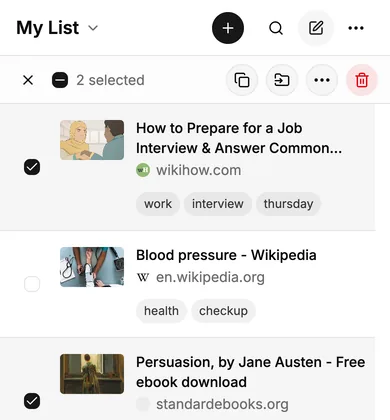
In Trash, selection offers Restore and a permanent deletion action instead. Restore sends the links to My List, since their previous lists aren’t recorded. Permanent deletion can’t be undone. Restore a link explains the difference.
Selection acts on the links shown on this device. If another device has recent changes, let sync finish before a large edit. A Bracemark backup is useful before a change you might regret, although importing a backup fills gaps and doesn’t overwrite a link that is still present.