Get started
Save links
Save a URL from the web app, phone apps, or browser extension, with a list, tags, and a note if you want.
A link needs an address. You can choose its list, tags, and a note as you save it, or add them later.
Save in a browser
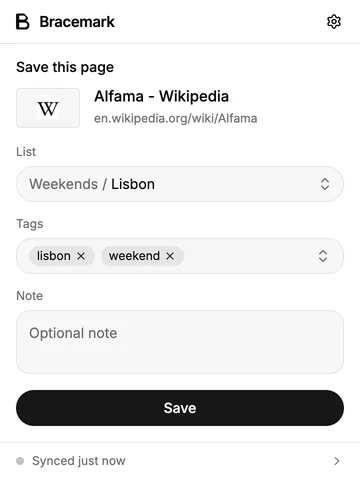
In the web app, click Add link, enter the URL, and click Save. Open “List, tags & note” if you want to file it now. If you use the Chrome or Firefox browser extension, open the page, click the browser extension icon, choose a list or tags if you want, and save. The browser extension signs in separately from the web app.
Save on a phone
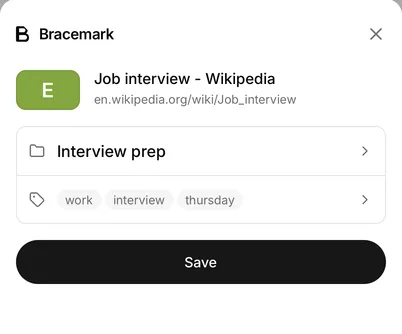
In the iPhone or Android app, tap Add link, enter a URL, and tap Save. “List, tags & note” holds the optional fields. From another app, use its Share action and choose Bracemark. The share screen lets you choose a list and tags before saving.
The link saves even if no title or image arrives. You can set a title yourself in Edit link; link previews explains where automatic details come from.
If the URL is already saved, the app tells you. If it is in Trash, you can restore it instead of making another copy. See restore a link.