Your data
Import your links
Bring links in from a browser, Raindrop.io, Pocket, LinkWarden, or a Bracemark backup: which file to use, what comes across, and what happens at your limit.
Where to find it
In a browser: open Settings → Data, click Import data, then Choose a file.
In the Android or iOS app: tap the ⋯ menu above your links, then Settings. Tap Data, then Import data, then Choose a file.
You don’t pick a format. Bracemark reads the file and works out what it is, and links you already have are skipped, including repeats within the file itself.
The file is read on your device. The links in it are encrypted there and sync like any link you add by hand, and the file itself is never uploaded.
If you turn on server previews in the web app, pending imported links can send their addresses to our preview service as they come into view there. On a phone, choose All links in Settings → Link previews to fetch imported links on the device as they come into view. See link previews for both paths.
Which file to use
| Coming from | Use this file |
|---|---|
| A web browser | Its HTML bookmarks export |
| Raindrop.io | The HTML export — see the note below |
Your Pocket export, as the .zip or the .csv inside it | |
| LinkWarden | Its backup, a .json file |
| Karakeep | Its HTML bookmarks export |
| Brace.to | Its export, a .txt file |
| Bracemark | A Bracemark backup, the .zip from Export all data |
| Anything else | A plain text file with one link per line |
Raindrop.io offers HTML and CSV, and both work, but choose HTML. The CSV writes a nested collection as a path joined with “ / ”, so a collection named “Work / Clients” comes in as a Clients list inside a Work list. The HTML keeps the nesting exactly.
What comes across
- Folders become lists, nested the way they were, on any plan. A folder with the same name as a list you already have, in the same place, goes into that list instead of making a second one.
- Titles stay yours. A title in the file is kept as the link’s title and isn’t replaced when a preview is fetched later, so a link you renamed in another app keeps your name for it.
- Notes and tags come across when the file has them. Raindrop.io highlights are added to the link’s note as quotes, after the note itself, and its favorites get the tag Favorites.
- Dates: when the file records when a link was saved, that date is kept.
- Archived: a link Pocket marked archived goes to your Archive.
What doesn’t come across: cover images, excerpts, and files other apps kept for a link, such as archived pages, PDFs, and images. Raindrop.io leaves its Trash out of both of its exports, so those links aren’t in the file to import.
Importing a Bracemark backup
A backup is the one file that carries everything — links, lists, tags, pins, files, and settings, and the links in Trash too. Importing one merges it into what you have: anything already on this device is left as it is, so restoring an old backup can’t overwrite newer changes. A backup made in the Android or iOS app imports in a browser, and the other way round.
If the file holds more than your plan allows
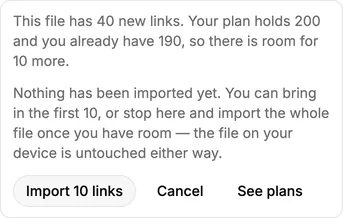
The free plan holds 200 links. Before anything is written, the import counts the new links in the file, and if there isn’t room for all of them, it tells you how many there are and how many fit, then asks:
- Import the ones that fit — the first ones in the file’s order. The rest stay in the file, and importing the same file again after you upgrade brings them in; the ones already here are skipped as duplicates.
- Cancel — nothing is imported, and you can import the whole file once you have room.
A Bracemark backup doesn’t get that choice. It is imported whole or not at all, because restoring part of a backup would leave its lists and pins pointing at links that aren’t there.
If an import stops partway
Links are saved as they are imported, so what came in before the page or app closed is kept. Import the same file again to bring in the rest — what’s already there is skipped. A large file can take a few minutes, so leave the page or app open until the result appears.